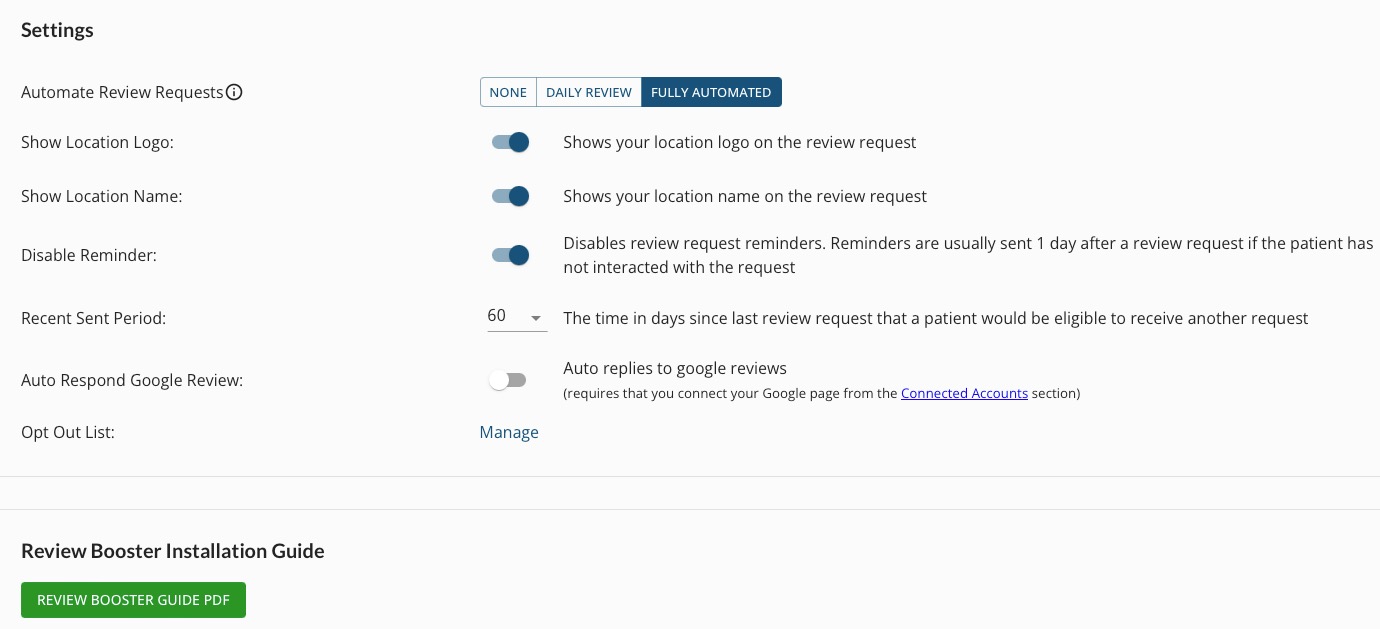
Send Review Requests to your clients the way you want and when you want. Tailor the Review Management Settings to best suit your practice!
Click Engage on your PracticeQ toolbar.
Click Review Management → Settings.
Review the following settings and make your selections:
Automate Review Requests
NONE: On this setting, no review requests will send automatically.
DAILY REVIEW: On this setting, Engage sends a daily list of clients eligible to receive review requests. Staff can review the list and remove clients to whom they would like not like to send review requests, then send requests to the remaining clients.
FULLY AUTOMATED: On this setting, all eligible clients will be sent automated review requests at the end of the day (around 5pm local time).
Show Location Logo: toggle ON or OFF to display your logo in the review request template.
Show Location Name: toggle ON or OFF to display your location name in the review request template.
Disable Reminder: if toggled OFF, Engage will send a reminder to clients who do not respond to their review requests after one day.
Recent Sent Period: the "cool-down" period, set by your practice, for how long it will be before a client is eligible to receive another review request. Select your desired number of days in the dropdown menu. The minimum is 7 days.
Auto Respond Google Review: if toggled ON, clients who give Google reviews will receive rotating automatic responses from your practice. Your practice can customize these responses in Templates → Review Management. To learn more about auto-responses, click here.
Opt Out List: Click Manage to view patients who have opted out of Review Management services from your practice.
Review Booster Installation Guide: Click the green button to open a PDF that will guide your website designer through adding review widgets to your practice website!
.png)