.png)
Engage - Add Public Review Site URLs
Include buttons in your review requests that take clients to your public review sites, such as Google or Facebook!
Step 1: Locate and enter the public site URL
- Click Engage from your PracticeQ toolbar.
- Click Review Management and select the Review Sites tab.
- If you do not have your public review site URLs and are not sure how to find them, click the Learn How link. This will show you a list of approved public review sites and instructions for finding the correct link for your business.
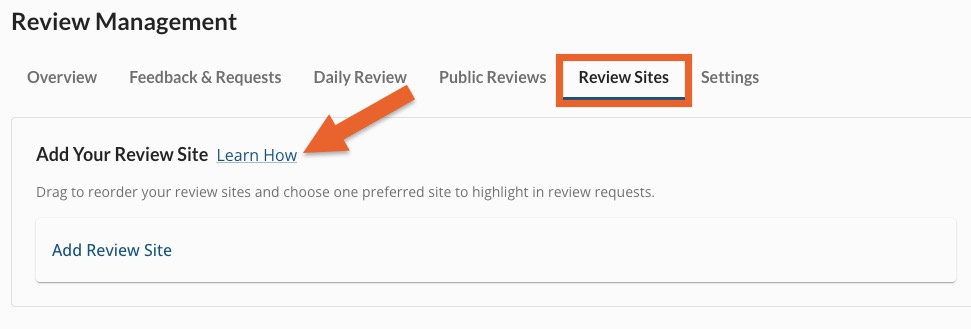
- Once you have copied your public review site URL, click Add Review Site.
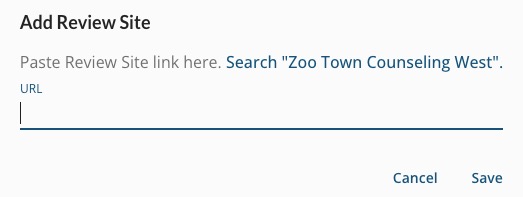
- Paste the URL and click Save.
Step 2: Review templates
- While still in Engage, click Templates.
- Click the arrow to the right of Patient Communicator heading to open the dropdown menu.
- Select Review Management.
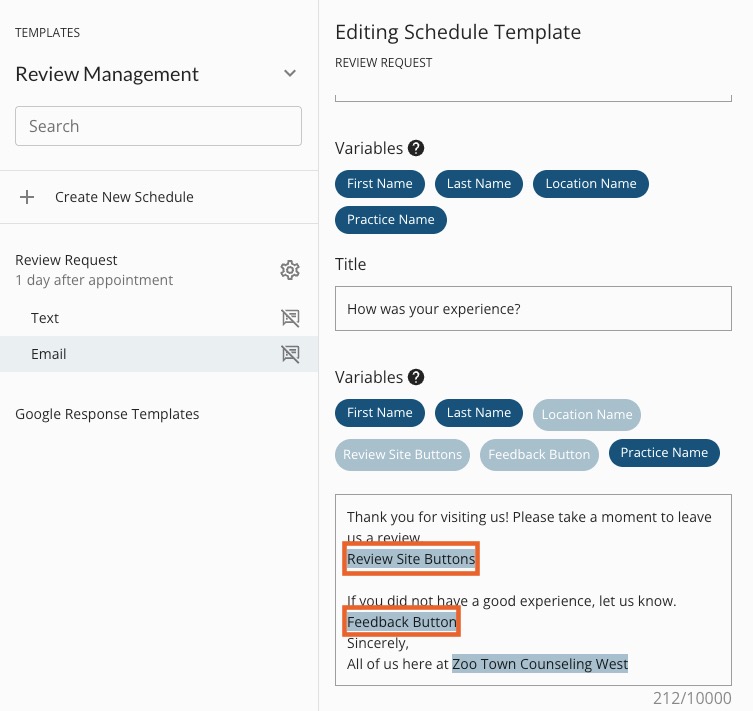
- Your Review Request templates will show to the left. For each one, click Text and Email.
- The template editor will open for each.
- Edit and customize the wording to suit your practice, but do not remove the following variables; they allow your client to access your review sites and leave internal feedback.
- Request Link
- Review Sites Button
- Feedback Button
- Click Save after making changes.
Step 3: Send Test Message
- While still in Engage, click Review Management.
- Select the Feedback & Requests tab.
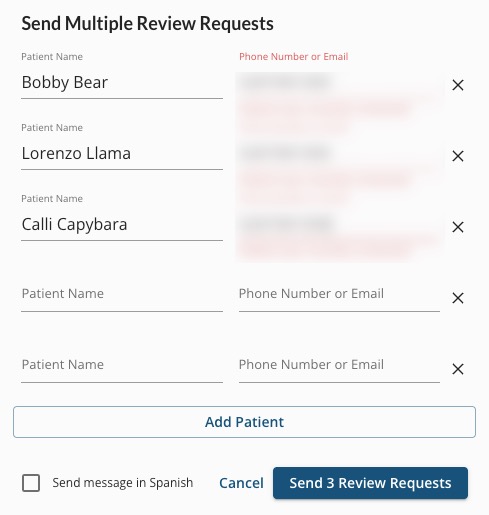
- Click Send Requests Manually.
- Enter a name, such as "Office Test" and enter your phone number.
- Click Send 1 Review Request.
- The text will contain a link; open the link and verify that the review request appears the way you wish.
IMPORTANT: Click the public site button in the body of the test message to confirm that it takes you to the correct site for your business.
For more about Engage and how you can add it to your PracticeQ account, click here.