.png)
Engage - Set Up Your Birthday Reminders
Engage allows you to send customized greetings to your clients on their birthdays!
All clients marked active in Engage are eligible to receive birthday reminders. To prevent a client from receiving birthday reminders, opt them out of this service on the Opt-Out list. Another option is to mark them inactive; however, this option will prevent them from receiving any messaging.
Access Birthday Reminder Settings:
- Click Engage from your PracticeQ toolbar.
- Click Templates → Appointments.
- Scroll down to Birthday Reminder.
- Click the gear wheel icon to the right of the message title.
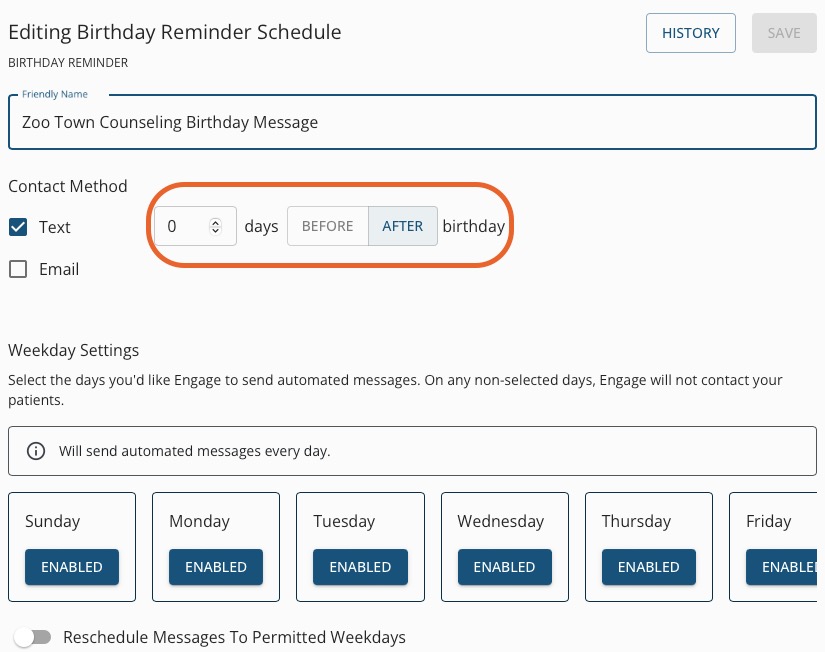
- Give the Birthday Reminder a Friendly Name, if desired.
- If you would like the Birthday Reminder to send on the client's birthday, leave the settings as 0 days after birthday (shown below).
- Under Weekday Settings, click the Enabled button under any day of the week you do NOT wish for this message to send, such as Saturdays and/or Sundays. The label under the selected days will change to Disabled.
- Click SAVE.
Customize Your Birthday Reminder Message:
- Click Templates → Appointments.
- Scroll down to Birthday Reminder.
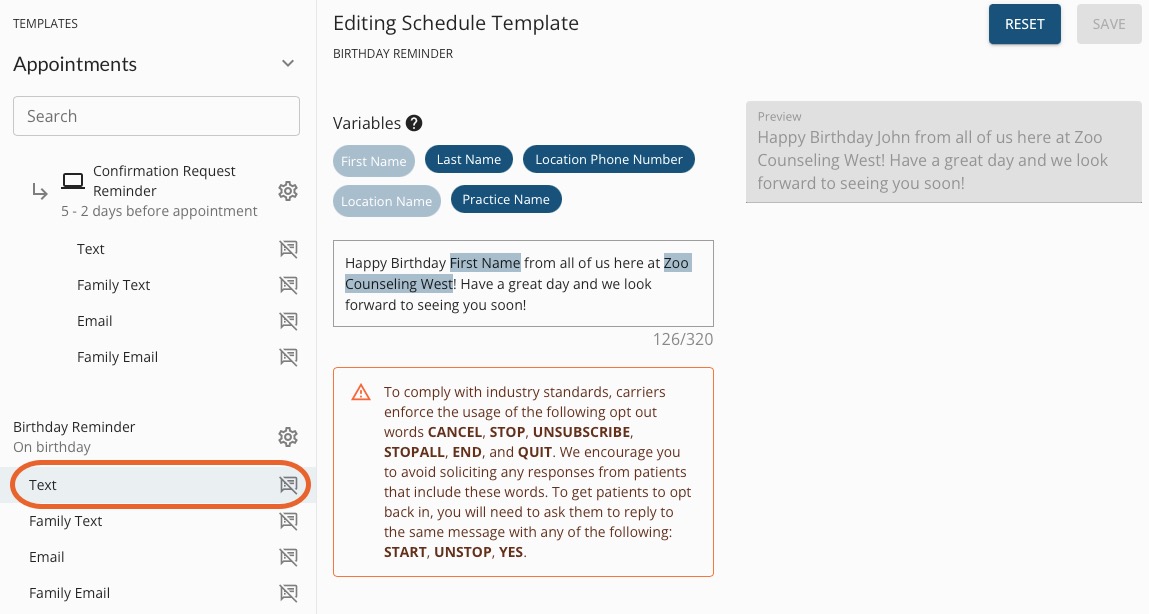
- Under the Birthday Reminder heading, click the Message Type to edit, such as Text. You will need to do this for all the message types you choose to send.
- Make edits to the message in the text box. Remove or add Variables as desired.
- Review your message in the Preview on the right.
- Click SAVE.
For more about Engage and how you can add it to your PracticeQ account, click here.
