.png)
Engage Premium - Translate Incoming Messages
Do you have clients who speak different languages? The AI Translator tool is here to help!
Note: AI Translation is available with Engage Premium. To learn more about what Premium offers, click here.
Use the AI Translator for Incoming Messages
- Click Engage from your PracticeQ toolbar.
- Click Patient Communicator.
- Locate the message requiring translation.
- Click the Translate Message link below the message.
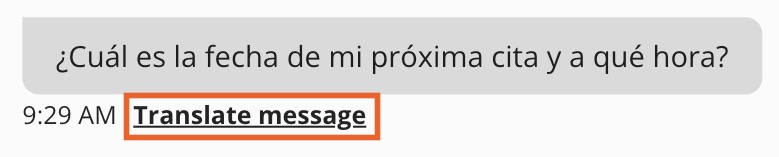
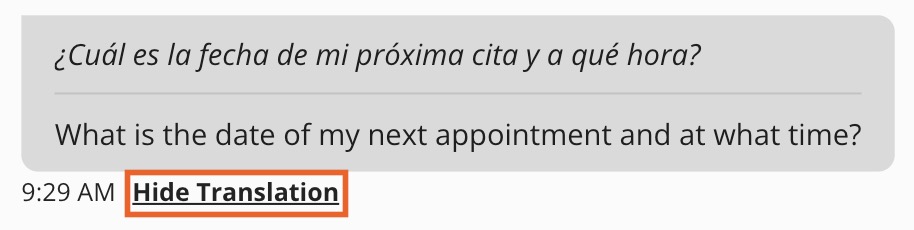
- The translation will display; click Hide Translation after reading, if desired.
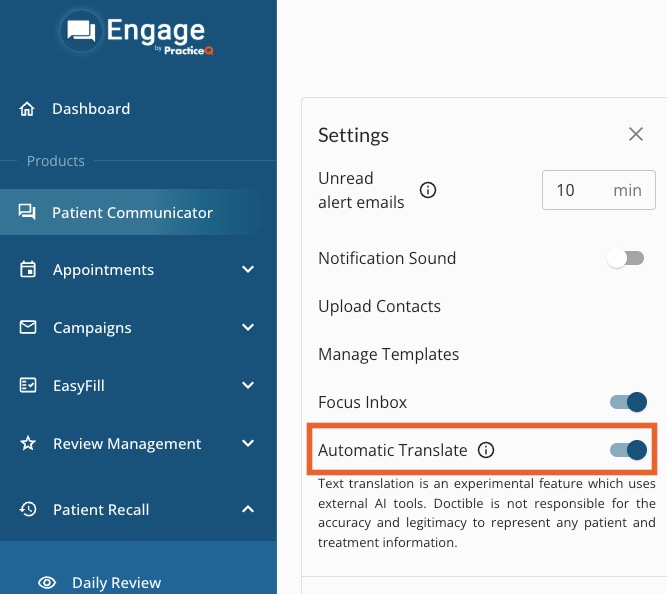
- If you wish for AI Translation to be on all the time, click Patient Communicator and click the gear wheel icon.
- Turn the Automatic Translate toggle to ON.
For more about Engage and how you can add it to your PracticeQ account, click here.