.png)
Engage - Check Messages in the Patient Communicator
Check your Patient Communicator inbox to see new messages from your clients.
Check Messages
1. Click Engage from your PracticeQ toolbar.
2. Select Patient Communicator.
3. When a client sends a message, a notification appears in the navigation bar and next to the Focused tab at the top of the Patient Communicator screen.
Note: If you do not want your inbox to be filtered by Focused messages, click Patient Communicator and click the gear wheel icon. Turn the Focus Inbox toggle to OFF.

4. The contact will move to the top of your inbox at the left.
5. A blue bar to the left of the contact name indicates a new message.

6. When you click the contact’s name, their most recent message will appear at the bottom of the message history.
7. If a text message sits unread for 10 minutes, Engage will email your practice to notify you of the new message. Click the Go to conversation button in the email. This will direct you to your Engage dashboard, where you can respond to the message. If you wish to change the number of minutes a message can sit unread before you receive a notification, you can do so: read Engage - Patient Communicator Settings to see how.
8. Staff members can opt out of receiving emails for unread messages in the Patient Communicator. Read the Manage Email Notifications for Practice Staff article to find out how!
Note: The All filter of the Patient Communicator displays all automated and non-automated message history for the selected patient.
Message Actions
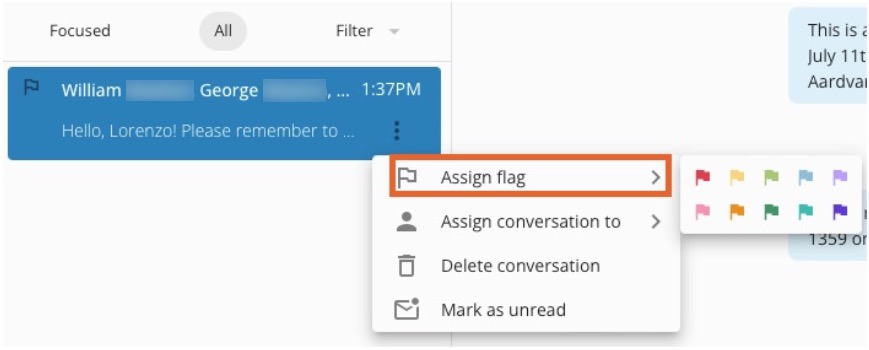
- To assign a message to a category of your choice, click the three dots and assign a colored flag.
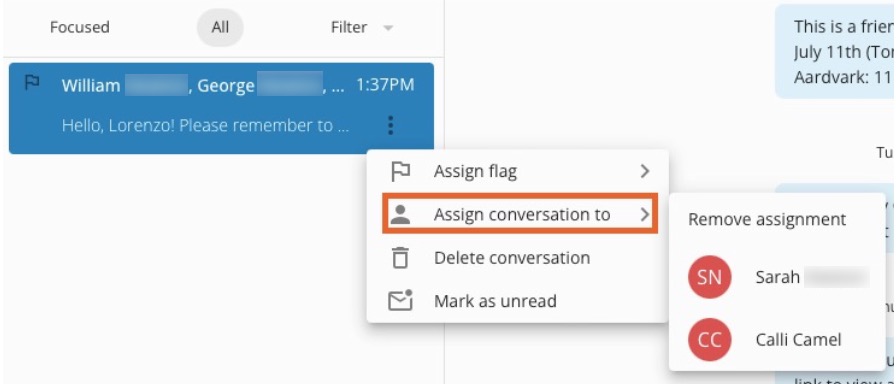
- To assign a message to a staff member, click the three dots and select the staff member.
- To unassign a message, click the three dots and select Remove assignment.
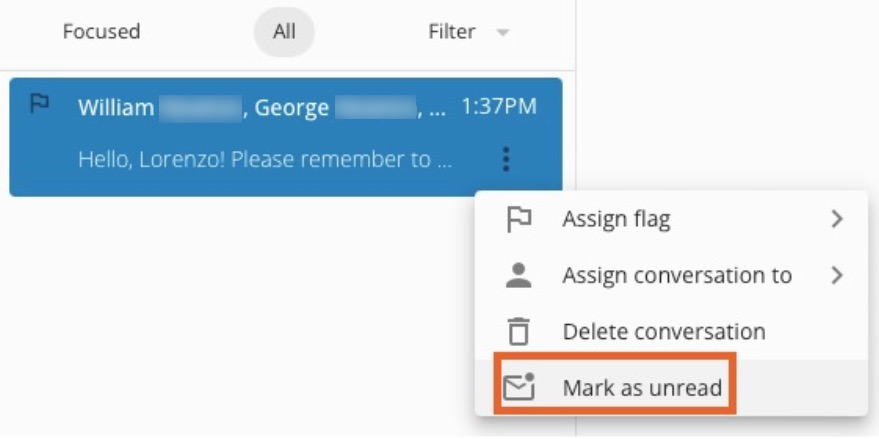
- To mark a message unread, click the three dots and select Mark as unread.
For more about Engage and how you can add it to your PracticeQ account, click here.