.png)
Engage - Set Office Hours and Away Response
Set your office hours so an away message will automatically send to clients who text the office when it is closed.
Note: These messages are location-specific. Use the dropdown menu on the upper right of the screen to toggle between your locations and set the hours for each.
Set Office Hours:
- Click Engage from your PracticeQ toolbar.
- Click Location Details.
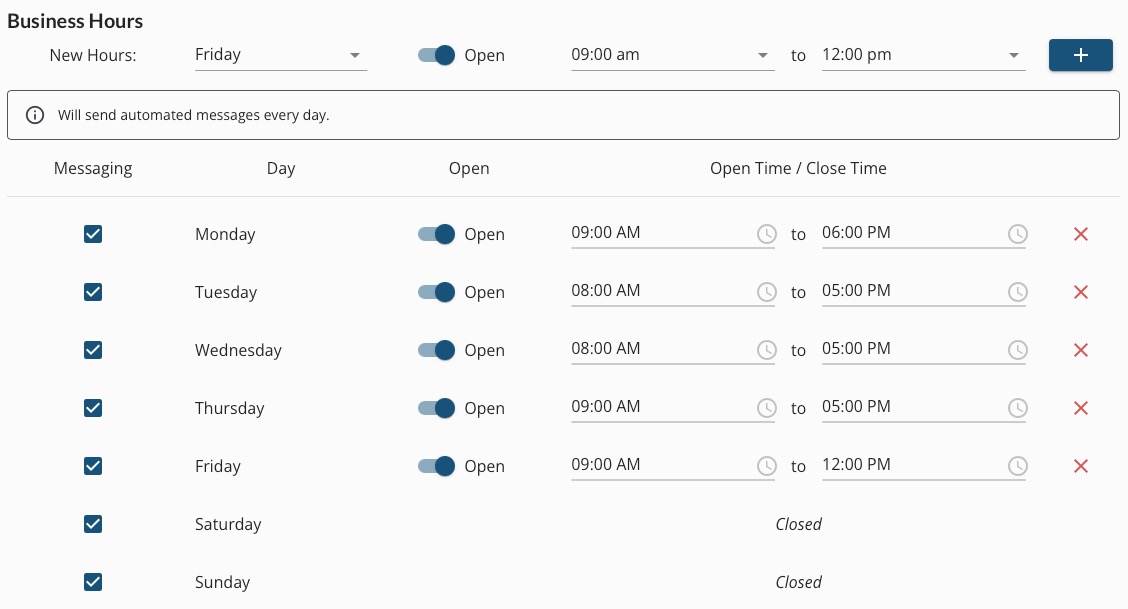
- Enter the Business Hours by choosing the day in the New Hours dropdown menu.
- Select the opening and closing times from the dropdown menus.
- Click the plus sign icon.
- Continue to add the location’s open hours for each day of the week. Your entries will appear in the list below for your review. Click the red X to remove entries.
Enter the Away Response
- Click Engage from your PracticeQ toolbar.
- Click Patient Communicator.
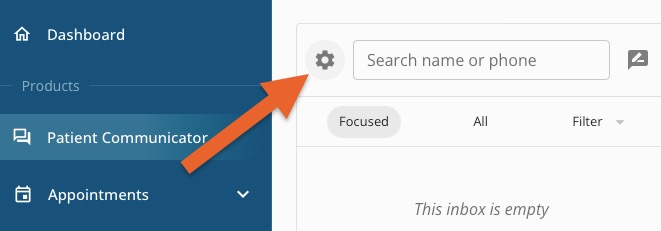
- Click the gear wheel icon to the left of the contact search field. The Patient Communicator settings will display.
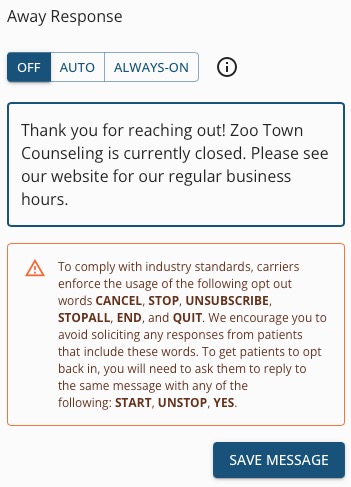
- Select the Away Response frequency:
- AUTO means clients will receive the Away Response when they text outside of business hours.
- ALWAYS-ON means clients will receive the Away Response each time they text in, regardless of business hours.
- OFF means clients will never receive the Away Response, regardless of business hours.
NOTE: There is a cool-down period; clients will only see your Away Response once every 3 hours. For example, if a client texts you three times in 15 minutes while your Away Response is in effect, they will only receive the message once.
- Enter the message in the text box.
- Click SAVE MESSAGE.
For more about Engage and how you can add it to your PracticeQ account, click here.