.png)
Engage - Set Up Your Appointment Confirmation Requests
Craft your appointment confirmation requests and decide when they send to your clients.
Edit the Message Content:
- Click Engage from your PracticeQ toolbar.
- Click Appointments from the menu on the left.
- Scroll down to Confirmation Request.
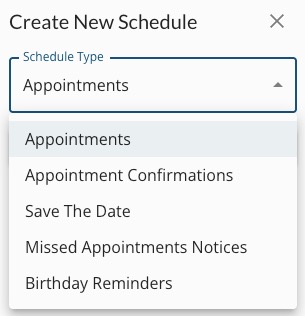
- If you need to add a new Confirmation Request, click Create New Schedule, then select Appointment Confirmations from the Schedule Types dropdown menu.
- Click on each message type (Text, Family Text, Email, Family Email, Call and Family Call) to edit its content. We’ll choose Text here as an example.
- Place your cursor in the text box to edit the template.
- Click the blue Variables above the text box to add them to the template. The Variables will personalize your message by pulling information from the client's profile in PracticeQ.
- A preview example will display on the right. Click SAVE when you are happy with your message. To return to the default message, click RESET.
Note: Do not remove the last part of the message that reads STOPtoOptOut. This verbiage is necessary to offer an opt-out option to your clients.

Set the Message Timing:
- Return to the Appointments tab.
- Locate the message for which you wish to edit the timing.
- Click the gear wheel icon to the right of the message title.
- Give the message a Friendly Name, if desired. For example, you may title it 3 days before Confirmation Request.
- Check each Contact Method you wish to use. You can select Text, Email, Call, or any combination of the three.
- Please note that the Call contact method will only send to clients age 55 or older.
- Select a starting time, such as 7 days before appointment. This is the earliest day the message can send to the client.
- Select a duration, such as 4 days. Once the duration has lapsed, the client will not receive the message.
- Under Weekday Settings, click the Enabled button under any day of the week you do NOT wish for this message to send, such as Saturdays and/or Sundays. The label under the selected days will change to Disabled.
IMPORTANT: Do not forget to perform these actions for each message type you want to customize and for each of your practice locations!

For more about Engage and how you can add it to your PracticeQ account, click here.