.png)
Engage - Confirm an Appointment
Engage sends confirmation requests, allowing your clients to confirm their attendance for upcoming appointments.
First, Set Up Your Confirmation Requests. Once you have done so, the confirmation process begins:
- Your practice sends a Confirmation Request to the client.
- If the client responds with one of the following, the appointment is confirmed and they will not receive a Confirmation Request Reminder.
- C
- Confirm
- Yes
- Ok
- Note: Clients are able to send a thumbs-up emoji, but the emoji will not confirm the appointment.
- If the client does not respond to the Confirmation Request, they will receive a follow-up Confirmation Request Reminder.
Note: Your practice may choose not to send the Confirmation Request Reminder message. You can easily disable this in your Engage settings.
Confirmed Appointments in PracticeQ
- Once the appointment is confirmed by the client, it will appear with a check mark on the Bookings calendar and a green attendance confirmed tag in the Appointment Dialog.


Confirmed Appointments in Engage Dashboard
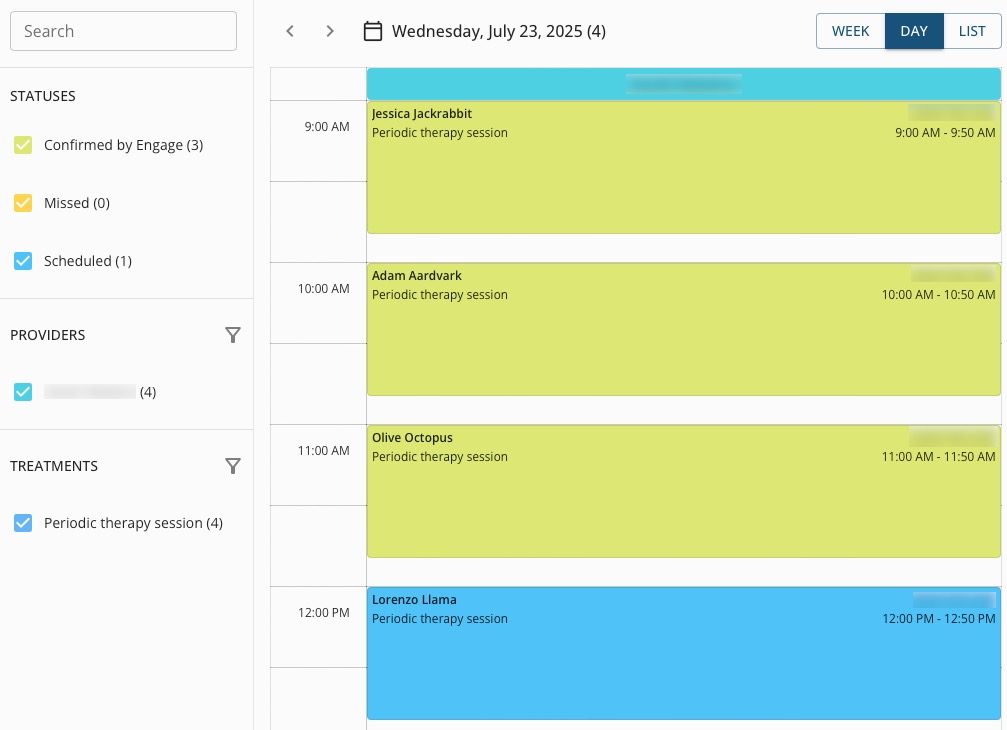
- Once the appointment is confirmed by the client, it will appear light green in Engage → Appointments → Schedule.
For more about Engage and how you can add it to your PracticeQ account, click here.