.png)
Engage - Monitor Your EasyFill Requests
It's easy to view your EasyFill requests and check their status.
- Click Engage from your PracticeQ toolbar.
- Click EasyFill → Requests.
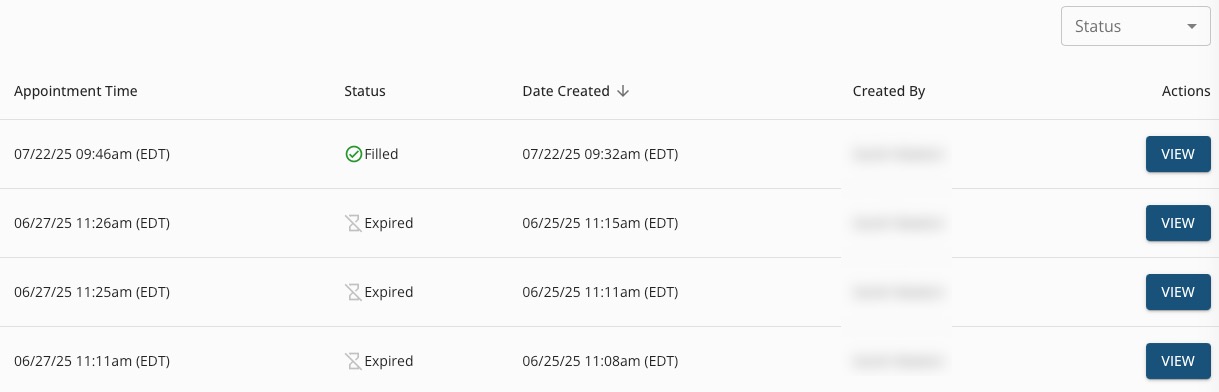
- All past and present EasyFill requests will display; click the Status dropdown menu to filter by Active, Filled, Stopped or Expired.
- Click Manage for any request to see all clients included in the request.
- Click Stop to cancel a request at any time.
- A request's status will change to Filled once a client has responded and accepted the EasyFill request, or once you have filled it on their behalf. Click VIEW to see which client accepted the appointment.
- A request's status will change to Expired once the available appointment time has passed.
Note: To quickly access the Easyfill Requests list from PracticeQ, click Requests from your Bookings page.
