.png)
Engage - Choose Your EasyFill Settings
Engage's EasyFill feature is a digital waitlist system that automatically contacts clients when an appointment becomes available due to a cancellation or reschedule. Choose the settings that best suit your practice.
- Click Engage from your PracticeQ toolbar.
- Click EasyFill.
- Select the Waitlist tab.
- Click Settings.
- Make your selections based on the descriptions below.
- Click Save Settings.
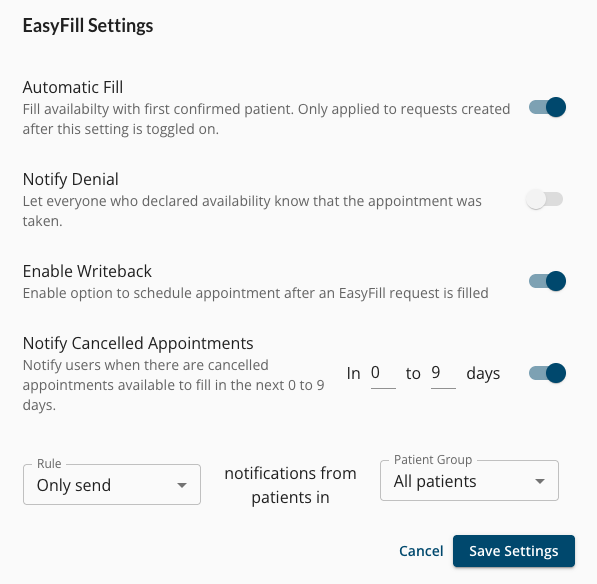
- Automatic Fill:
- When enabled, the first client to respond with availability will automatically be booked into the open appointment slot in PracticeQ.
- When disabled, your practice can go to EasyFill → Requests and click the Manage button to see all clients who have confirmed their availability. You can then click Fill for the client that you prefer to give the slot to.
- Notify Denial: Automatically sends a message to clients who responded but did not get the appointment, keeping them informed.
- Enable Writeback: This enables an Add to Calendar button when a client fills an EasyFill request. Pushing this button syncs the new appointment information to PracticeQ's calendar.
- Notify Cancelled Appointments: Alerts staff when a cancellation occurs that falls within the chosen date range.
- You can also set a Rule to only send or not send the notifications to specific client groups. To use this feature, you must first Create Patient Groups.
For more about Engage and how you can add it to your PracticeQ account, click here.