.png)
Engage - Fill Vacancies with EasyFill
When you have a sudden hole in your schedule, use EasyFill to schedule a client from your waitlist!
Step One: Practice Sends the Request
- Your client cancels or reschedules their appointment; enter the change in PracticeQ.
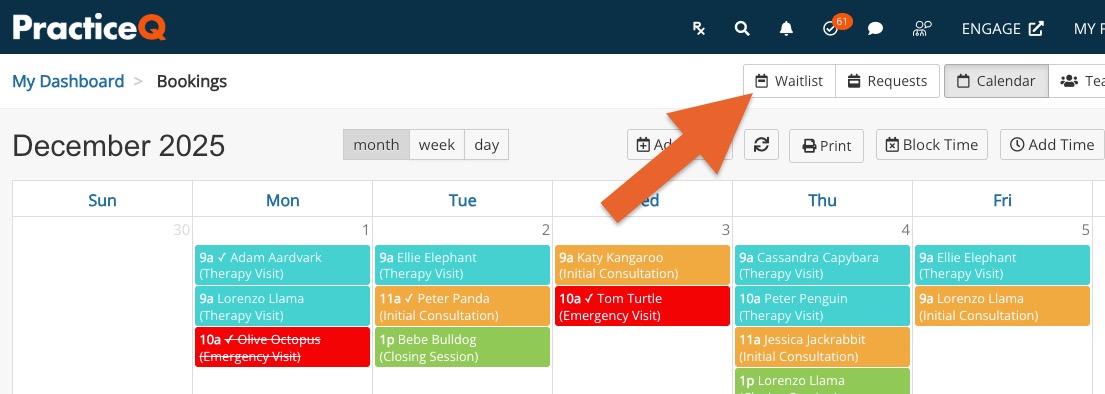
- Click the Waitlist button from your PracticeQ booking calendar.
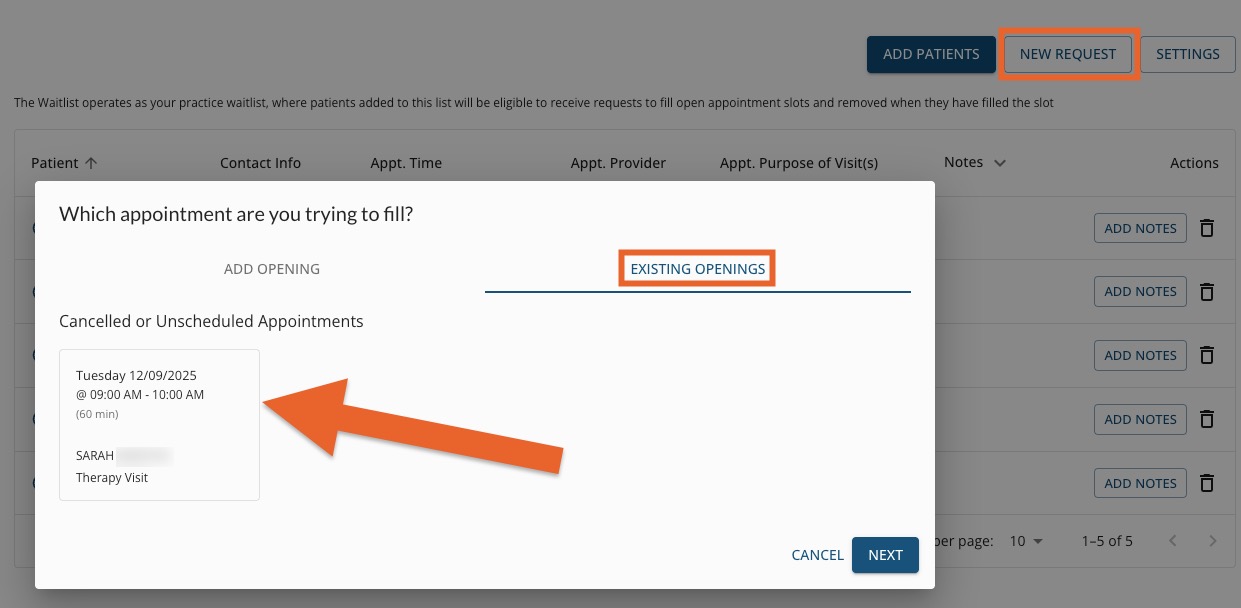
- Click New Request.
- In the window that displays, select the Existing Openings tab.
- Click the appointment that you just canceled or rescheduled and click Next.
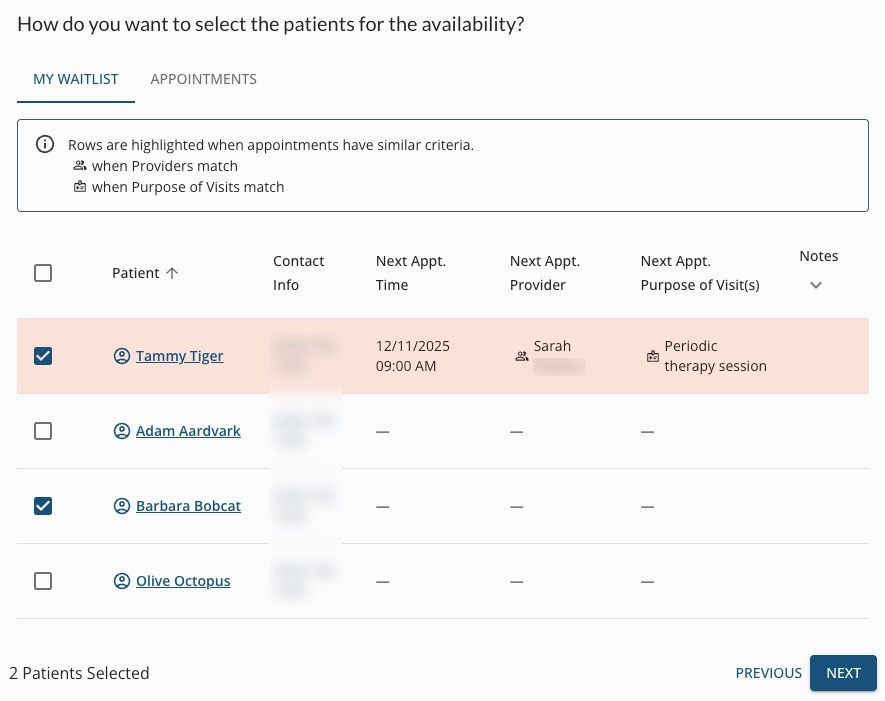
- Clients who match the service name and practitioner of the canceled/rescheduled appointment will be highlighted on your list. Select the clients to whom you wish to send the requests. You can select them from both the My Waitlist and the Appointments tabs; Engage will combine your selections into a single list.
- Click Next.
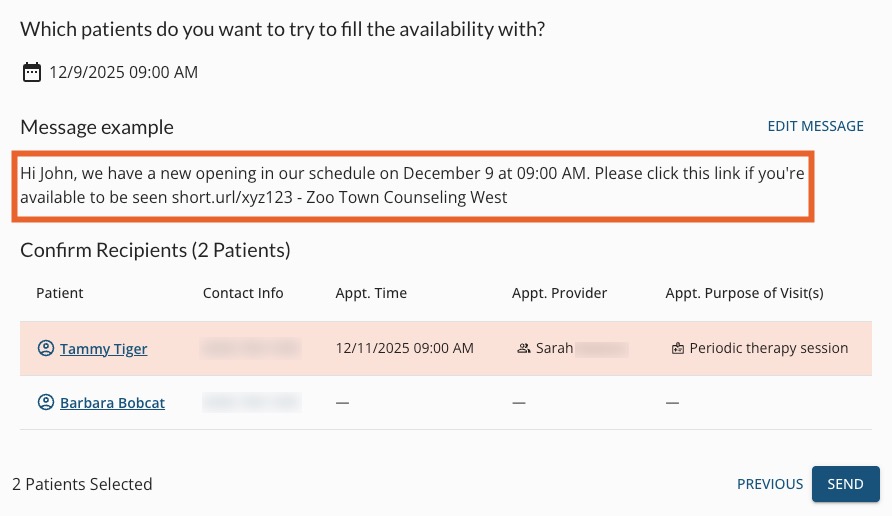
- In the next window, review the message; click Edit Message if you wish to make changes to it before sending.
- While editing, do not remove the EasyFill Link variable; this provides the client with the URL to accept the request.
- Click Send.
Note: The cancellation/reschedule may take up to 5 minutes to sync to Engage.
Step Two: Client Accepts the Request
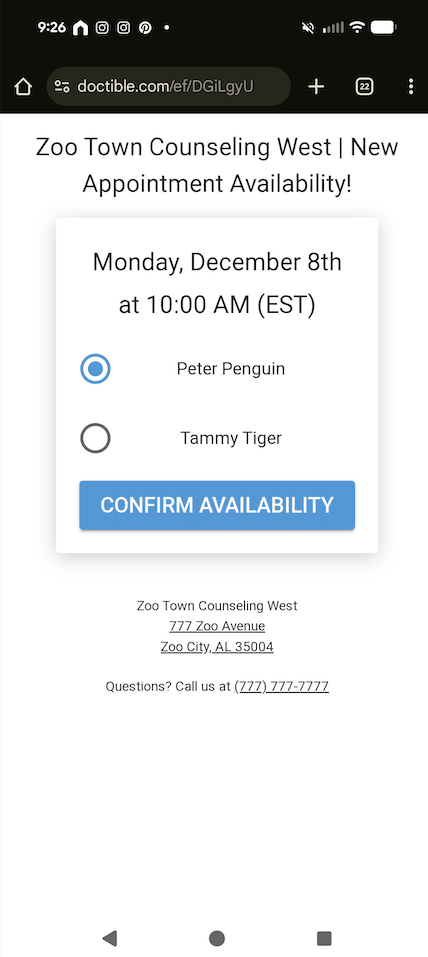
- The message will send to the the selected clients; they will click a link to accept the opening.
- Once a client clicks Confirm Availability to accept the opening, they receive an automated message from your practice.
To choose how to accept clients, access your settings in Waitlist → Settings. To learn more about what these settings mean, read Choose Your EasyFill Settings.
Step Three: Practice Updates the Calendar
- Staff clicks Requests from the PracticeQ calendar.
- The request will show a Filled status; click the Add to Calendar button.
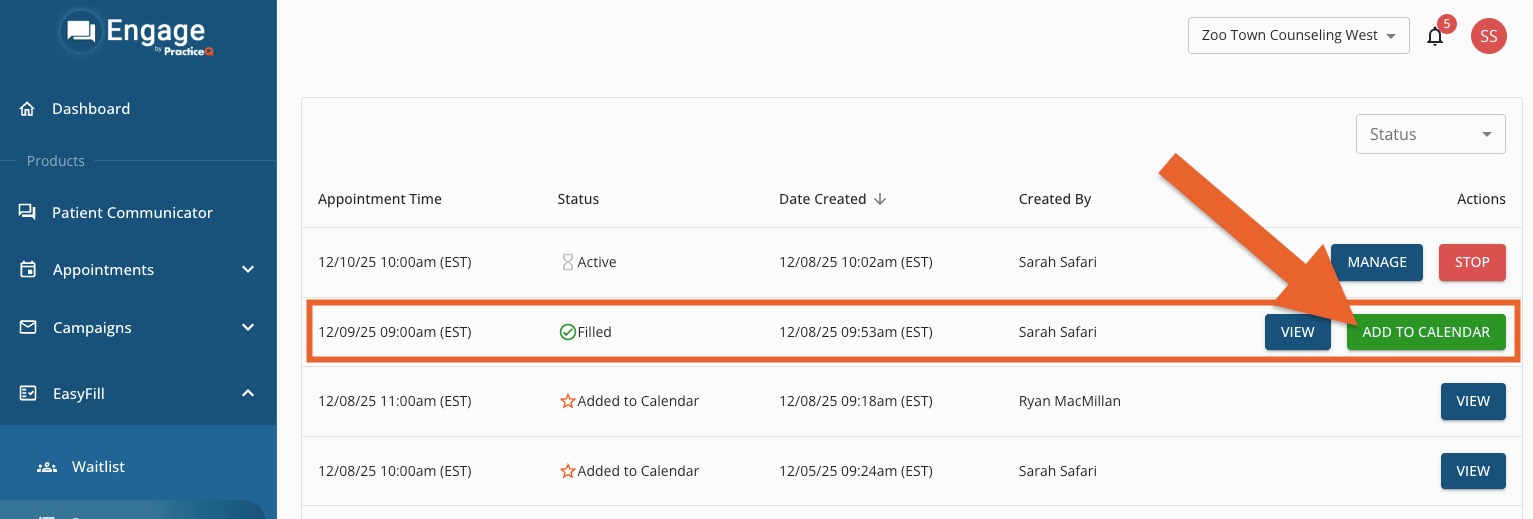
- In the next window, you may change the Practitioner and Service Name if needed.
- Click Schedule.
- The new appointment will sync to PracticeQ within 5 minutes.
- If needed, cancel the client's original appointment in PracticeQ to avoid duplicates.


For more about Engage and how you can add it to your PracticeQ account, click here.