.png)
Engage - Patient Communicator Settings
Customize your Patient Communicator to optimize your communication with clients.
Open your Patient Communicator settings
- Click Engage from your PracticeQ toolbar.
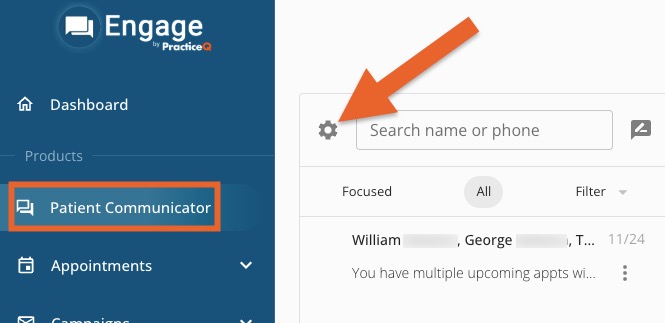
- Click Patient Communicator.
- Click the gear wheel icon to the left of the Search bar.
Available Settings
Unread alert emails
- Enter how many minutes a new message can stay unread before Engage sends you an email alert.
- Elect to receive emails regarding unread messages in Engage's Manage Users section.
Notification Sound
- Toggle ON if you would like your workstation to make a sound when there is a new message in the inbox.
Upload Contacts
- Click here if you wish to upload a CSV list of contacts. This is typically used to add contacts who are not clients in your PracticeQ system, such as family members.
Manage Templates
- Click here to view and edit templates that can be added quickly to messages. Examples of templates include Emergency Closure and Missed Appointment.
Focus Inbox
- When toggled ON, Engage will organize messages with unique language into a Focused inbox. For example, a standard confirmation response such as "C" would not filter to the Focused inbox, but a unique response such as "I need to reschedule my appointment" would.
- When toggled OFF, all messages will be in a single inbox.
Automatic Translate
- When toggled ON, Engage will translate incoming messages to English and display the translation beneath the message.

Away Response
- Craft the automated message you want clients to receive when they text your office outside of your business hours. (To set your business hours, click Location Details.)
- When you are satisfied with the message, click Save Message.

-
For more about Engage and how you can add it to your PracticeQ account, click here.