.png)
Engage Premium - Translate Outgoing Messages
Want to text clients in their preferred language? The Engage Premium AI Translator can help!
Note: AI Translation is only available with Engage Premium. To learn more about what Premium offers, click here.
Step 1: Set the Client's Preferred Language
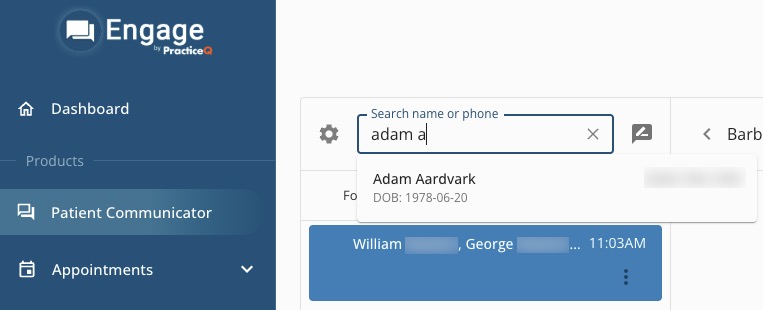
- Click Patient Communicator and type the client's name in the Search box.
- Select their name from the dropdown to open their contact profile.
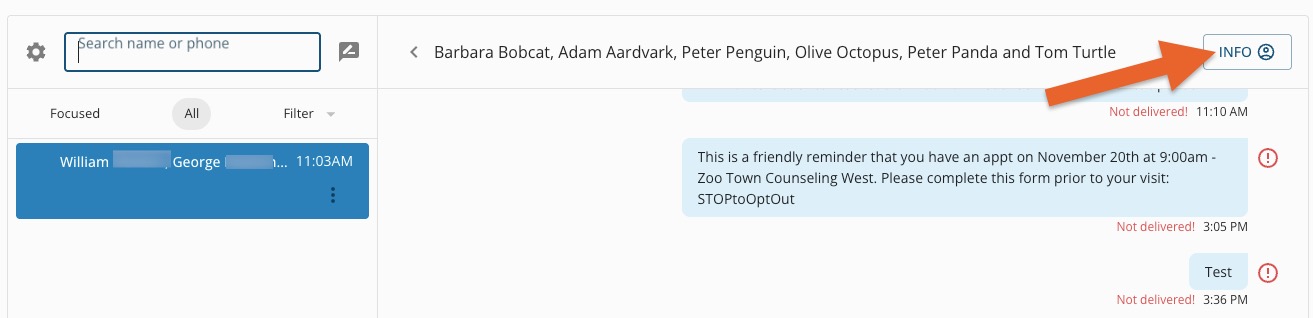
- Click the Info icon on the top right.
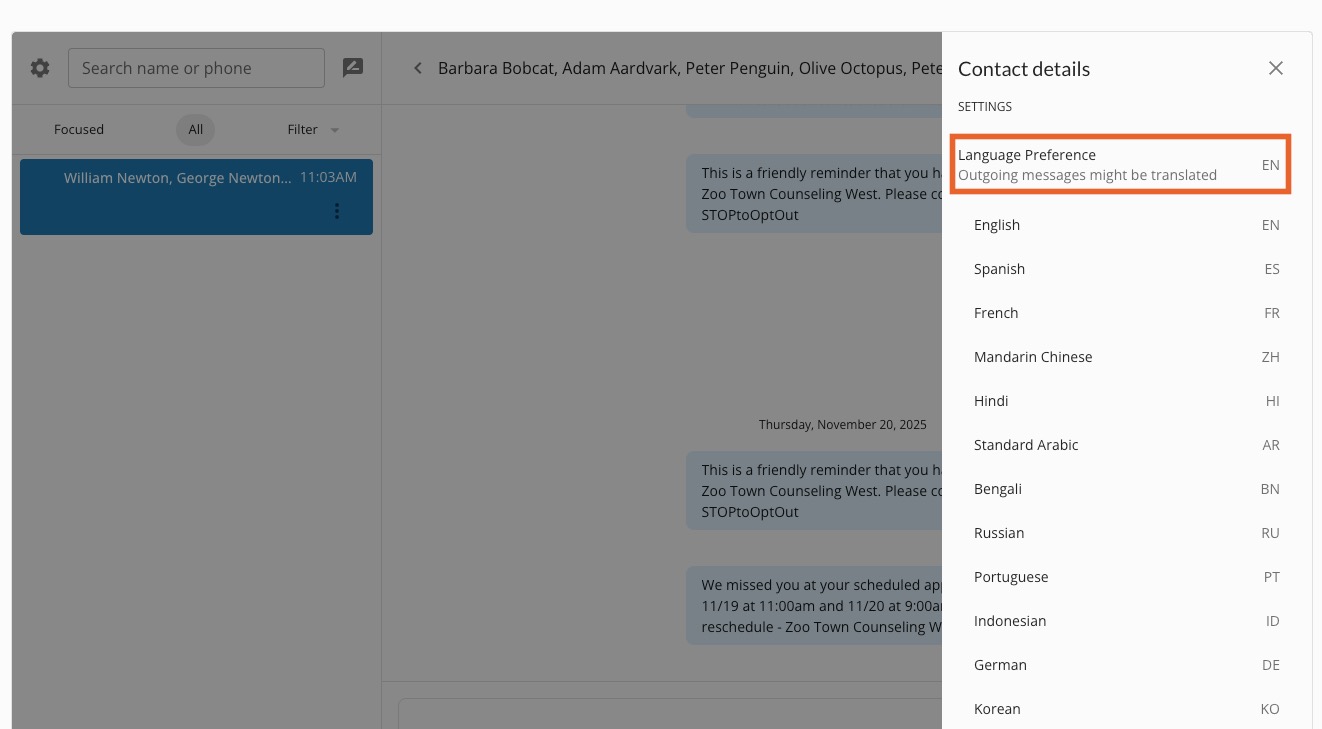
- On the right, scroll down to Settings and click Language Preference.
- Select the client's preferred language.
Step 2:Translate your Outgoing Messages
- Type the message to the client in your preferred language.
- Click the translation icon below the message.

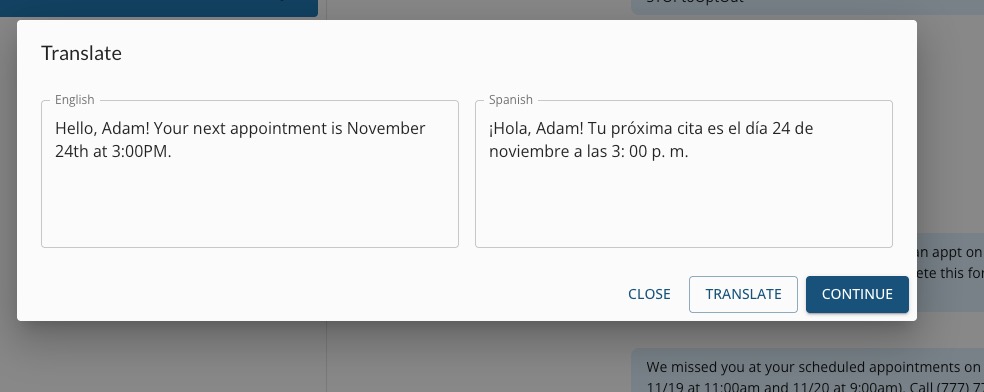
- A two-pane window will open with your language on the left and the client's preferred language on the right. Click Translate.
- Review the translation that appears; adjust as needed.
- When you are satisfied, click Continue.
- Click Send.
For more about Engage and how you can add it to your PracticeQ account, click here.