.png)
Engage - Build Your Template Library
Engage provides default templates for quick messaging. Personalize the defaults or create your own!
Create a Message Template
- Click Engage from your PracticeQ toolbar.
- Click Templates.
- Patient Communicator will be selected by default.
- You will see a list of default templates. To view/edit a default template, click its title.
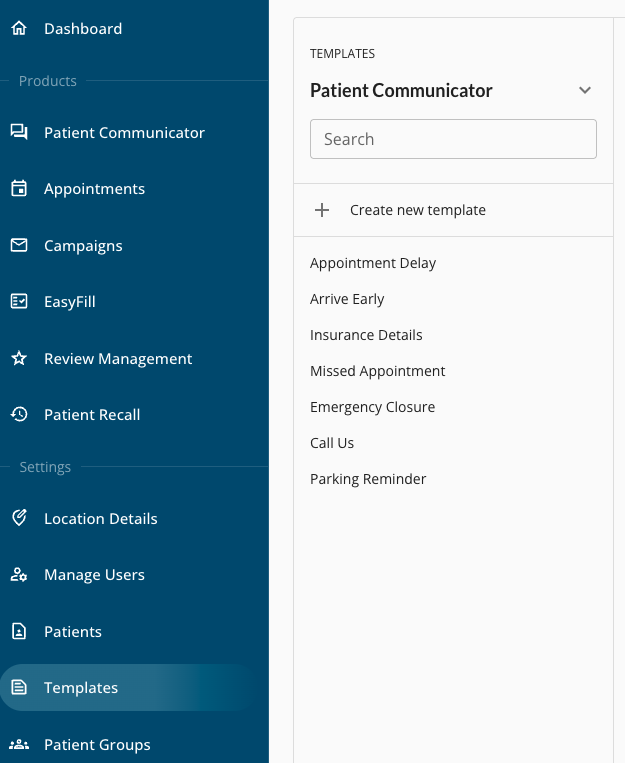
- To add a new template, click + Create new template.
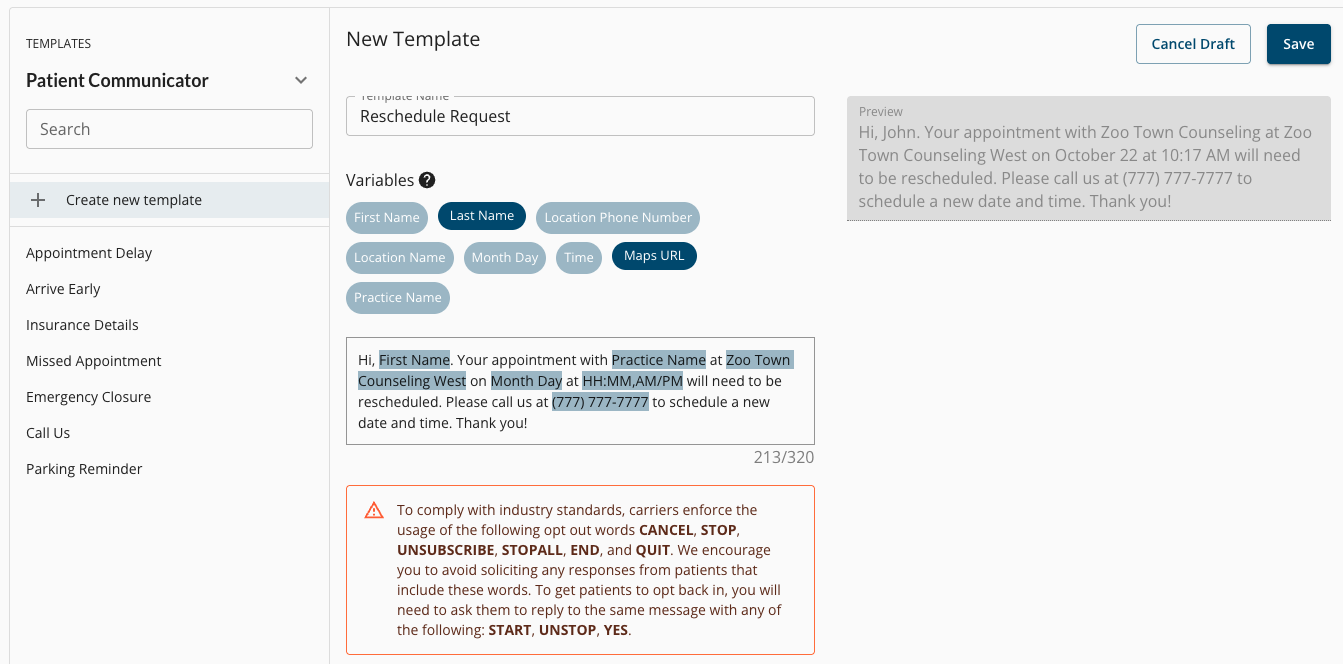
- In the editing window that opens:
- Name the template
- Enter the template message
- Add Variables, if desired, to pull in client and practice information
- Confirm that the Preview on the right looks correct.
- Click Save.
Send a Templated Message
- Select Patient Communicator from the Engage toolbar.
- Click Start Conversation.
- Select the contact and open the message thread.
- Click the three line icon and select your desired template from the list.
- The templated message will populate in the message box; edit as needed.
- Click SEND.

For more about Engage and how you can add it to your PracticeQ account, click here.