.png)
Engage - Maps URL
Help your clients navigate to your office in one click with the Maps URL variable!
Enter the URL in Location Details
- Click Engage from your PracticeQ toolbar.
- Click Settings → Location Details.
- Select the location in the dropdown menu on the top right.
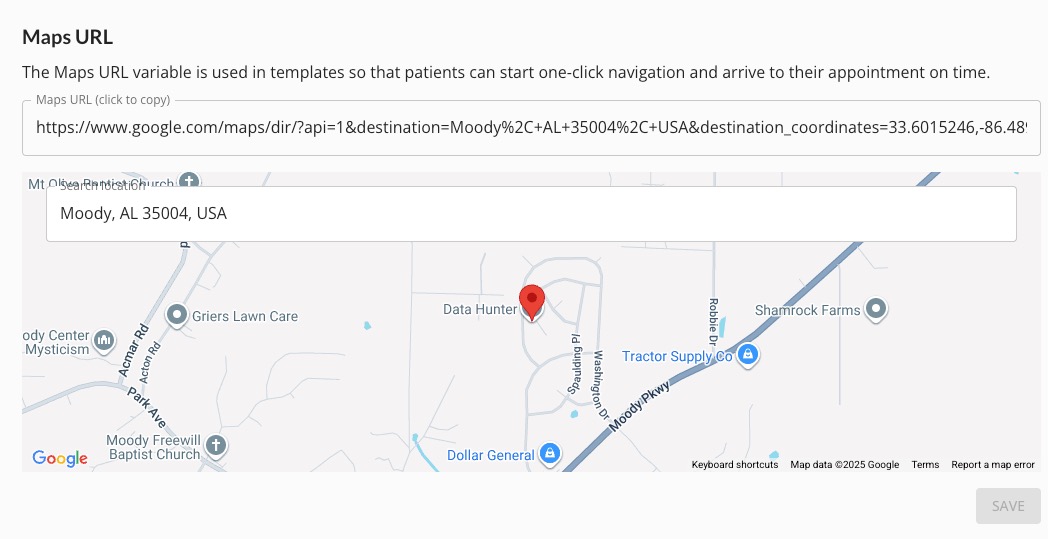
- Scroll down to the Maps URL section and enter the office location URL. If you do not know your location URL, search your business in the Search location field.
- Click SAVE.
- Repeat the process for each of your practice locations.
Add the Maps URL Variable to your Reminders
- Click Engage from your PracticeQ toolbar.
- Click Templates → Appointments.
- Scroll down to the template that needs the variable and click to open it for editing.
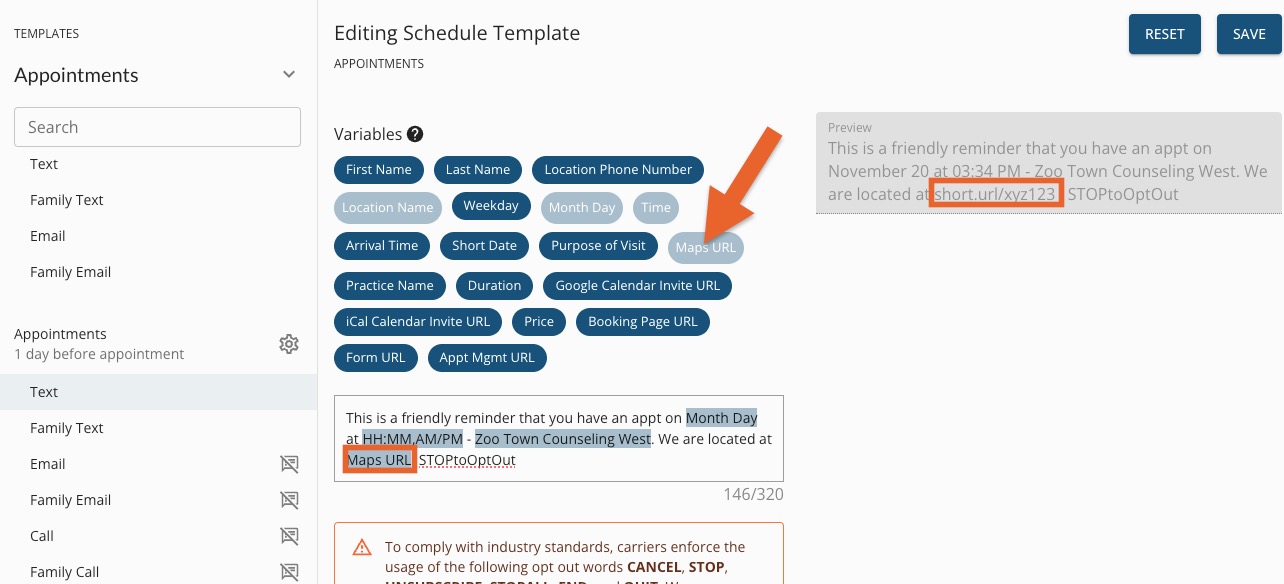
- Place your cursor where you want the Maps URL to appear in the message. If you wish, add surrounding text, such as We are located at...
- Click the Maps URL variable from the menu above to insert it into the message.
- In the Preview to the right, you will see that Engage shortens the URL for client convenience.
- Repeat the process for each of your practice locations.
For more about Engage and how you can add it to your PracticeQ account, click here.