.png)
Manage Staff Accounts Using the Yellow Switcher
If you are the account owner or an assistant that manages multiple practitioners, you can "switch" to their account using a yellow selector control at the bottom right of your PracticeQ account.
- The account switcher can be helpful when you're setting things up for a new practitioner or for when assistants are managing multiple practitioners.
- Please note that the user role Administrator does not impact ability to use the account switcher; it is based on the user account type, not role.
Use the Account Switcher
- The account switcher displays the name of the practitioner you are currently managing.
- Click the arrow to open the menu of practitioners you can switch to.

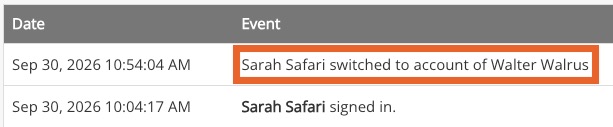
Note: When managing a practitioner, you're taking actions on behalf of that person, but the events/audits track you (your login) as the person taking the actions.
What Info Switches
By using the yellow switcher, you will still be tracked on the audit trail under your login but you will have access to the selected practitioner(s):
- Booking Calendar
- You can book appointments on the practitioner's calendar
- Booking Settings
- These are the booking settings that apply to the the practitioner you switched to in the yellow switcher
- Client List
- These are only the clients the practitioner has access to
Note: When managing someone's account, you are NOT limited by their role permissions but by your own permissions. Role Permissions follow the login.
What Info Doesn't Switch
By using the yellow switcher, you will still be tracked on the audit trail under your login but you will have access to the selected practitioner(s):
- 'Quick Notes' Dashboard Widget - The actual notes are tied to the logged-in user. If this dashboard widget is being used by a practitioner, switching to them will not display their notes. It will only display the notes the logged-in user has added into their own widget.
- Again, the event log still tracks actions by the logged-in user
Sending Questionnaires
- When you send a questionnaire, the client will get the form from the practitioner whom you are managing in the yellow switcher, but the event log will track the ‘sender’ based on the logged-in user.