.png)
Engage - Upload Your Practice Logo
Add your practice logo to your Engage dashboard. Once uploaded, the logo will appear in all automated emails.
- Click Engage from your PracticeQ toolbar.
- Click Location Details.
- Click the Add Logo Button.
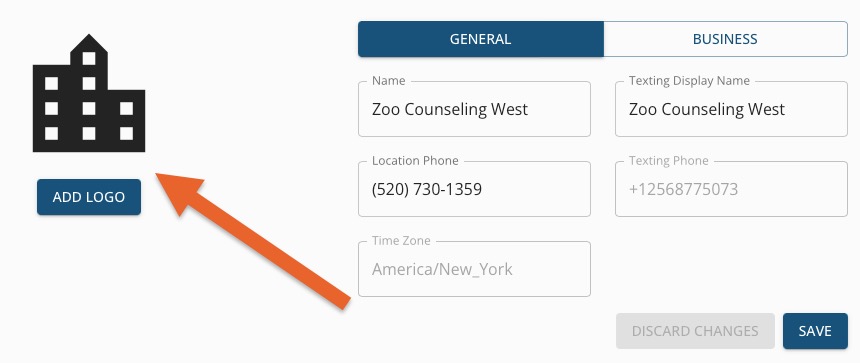
- Drag the practice logo into this box. Once complete, click SAVE.
- Please note: This change will have an immediate effect on emails sent on behalf of your location.
- Once the logo is uploaded, you can delete it or change it at any time.
IMPORTANT: Make sure to upload your practice logo for all of your locations. Use the dropdown menu on the top right to easily toggle between locations.

-
For more about Engage and how you can add it to your PracticeQ account, click here.